
Restoring a XAMPP Project from BackupNew Page
If a project is accidentally deleted, corrupted, moved to another computer, or you need to continue working from a backup, both the website files and database must be restored.
This tutorial demonstrates how to restore a complete XAMPP project from a backup.
Backup Requirements
Before restoring, you should have:
XAMPP Backups
├── Website Files
│   └── security_dashboard
│
└── Databases
    └── project_db.sql
The project folder contains your website files and the SQL file contains your database backup.
Restore the Website Files
Open your backup folder.
Example:
XAMPP Backups
└── Website Files
    └── security_dashboard
Copy the entire project folder.
Copy the Files into htdocs
Open:
C:\xampp\htdocs\
Paste the project folder into the htdocs directory.
Example:
C:\xampp\htdocs\security_dashboard
Your project should now appear inside the XAMPP web server folder.
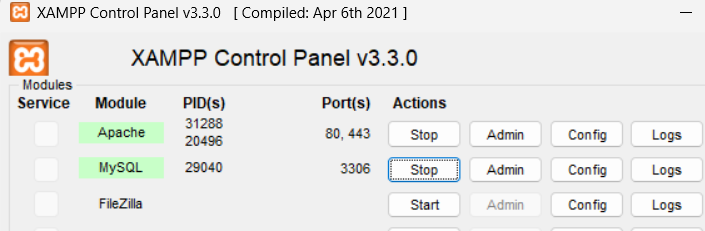
Start XAMPP
Open the XAMPP Control Panel.
Start:
Apache
MySQL
Open phpMyAdmin
Open:
You should now see the phpMyAdmin home page.
Create the Database
Click:
New
Create a database using the original database name.
Example:
project_db
Click:
Create
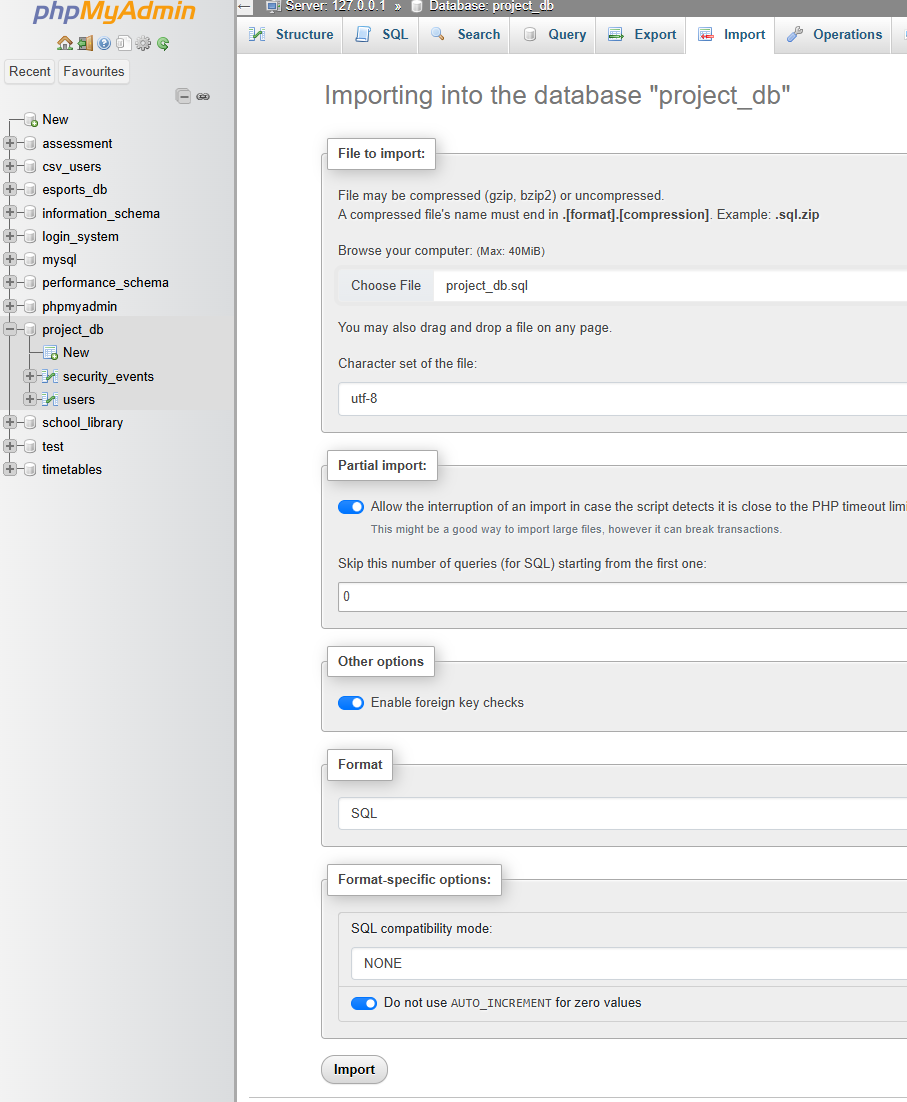
Import the Database Backup
Select the newly created database.
Click:
Import
Choose:
project_db.sql
Click:
Import
phpMyAdmin will restore all tables and records from the backup file.
Verify the Database
Select the restored database.
You should see the original tables.
Example:
project_db
├── users
└── security_events
Click on a table and verify that records are present.
Test the Website
Open your project in a browser.
Example:
http://localhost/security_dashboard/
Check that:
- Pages load correctly.
- Images display correctly.
- Login systems work.
- Database data appears correctly.
Common Problems
Database Connection Error
Check:
Database name
Username
Password
inside your PHP connection file.
Example:
$conn = new mysqli(
    "localhost",
    "root",
    "",
    "project_db"
);
The database name must match the restored database.
Table Not Found
Example error:
Table 'project_db.users' doesn't exist
Solution:
- Confirm the SQL file imported successfully.
- Verify the table exists in phpMyAdmin.
- Re-import the database if required.
Page Not Found
Example:
404 Not Found
Solution:
- Verify the project folder is inside:
C:\xampp\htdocs\
- Check the URL is correct.
Restoration Checklist
Website Files
✔ Project folder copied to htdocs
✔ Images restored
✔ CSS restored
✔ JavaScript restored
✔ PHP files restored
Database
✔ Database created
✔ SQL file imported
✔ Tables restored
✔ Records restored
Testing
✔ Website loads
✔ Database connection works
✔ Login system works
✔ Data displays correctly
Complete Restoration Process
Backup Folder
        ↓
Copy Project Files
        ↓
Paste into htdocs
        ↓
Create Database
        ↓
Import SQL File
        ↓
Test Website
You have successfully restored a XAMPP project from a backup.
Next tutorial: Moving a XAMPP Project to Another Computer.