Moving a XAMPP Project to Another Computer

OneMoving a XAMPP project requires a verified backup of both the advantagesproject of using XAMPP is that projects can easily be moved between computers.

This is useful when:

    Working between schoolfiles and home.its database.

    Prepare the source computer

      Save all source files. UpgradingExport tothe aproject newdatabase computer.as SQL through phpMyAdmin. SharingCopy a project with a teacher. Creating a backup before reinstalling Windows.

      Athe complete project transferfolder requires:

      from
        Website files.htdocs. DatabaseInclude files.the SQL export and a short setup note. Stop MySQL and Apache cleanly.

        The

        Onsetup note should record the Originalproject Computerfolder, local URL, database name and any approved port changes. Do not record real passwords.

        Transfer safely

        BeforeUse movingan approved storage location. Keep a separate source backup until the project,destination createhas abeen backup.

        tested.

        You should have:

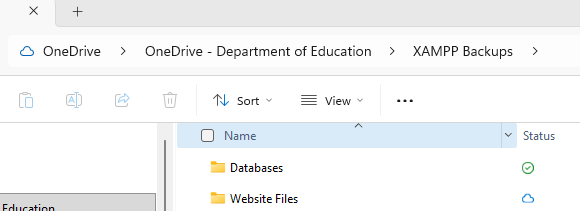
        XAMPP Backups
        ├── Website Files
        │   └── security_dashboard
        │
        └── Databases
            └── project_db.sql
        

        If you haveDo not alreadyemail createdsensitive aarchives backup,or referuse to:

        real
        Backingpersonal Up a XAMPP Project
        

        Copy the Backup Files

        Copy the backup folder to:

          USB drive External hard drive OneDrive Google Drive

          Example:

          USB Drive
          └── XAMPP Backups
          

          image-1781051544998.pngdata.

          Install XAMPPRestore on the New Computerdestination

          Download

          XAMPP:

          https://www.apachefriends.org/

          Install XAMPPand usingtest theXAMPP. default settings.

          The installation folder will usually be:

          C:\xampp\
          

          Start XAMPP

          Open the XAMPP Control Panel.

          Start:

          Apache
          MySQL
          

          Both services should show a green status.
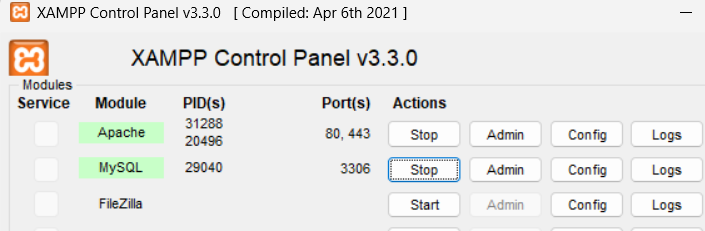
          image-1781051802720.png

          Copy the Website Files

          Open:

          C:\xampp\htdocs\
          

          Copy the project folder from your backup.

          Example:

          security_dashboard
          

          Paste it into:

          C:\xampp\htdocs\
          

          Your folder structure should now look like:

          C:\xampp\htdocs\
          └── security_dashboard
          

          Createinto the Database

          destination

          Open phpMyAdmin:

          http://localhost/phpmyadmin/

          Click:

          New
          htdocs

          Create a database with the same name as the original project.

          Example:

          project_db
          

          Click:

          Create
          

          Import the Database Backup

          Select:

          project_db
          

          Click:

          Import
          

          Choose:

          project_db.sql
          

          Click:

          Import
          

          Wait for the import to complete.
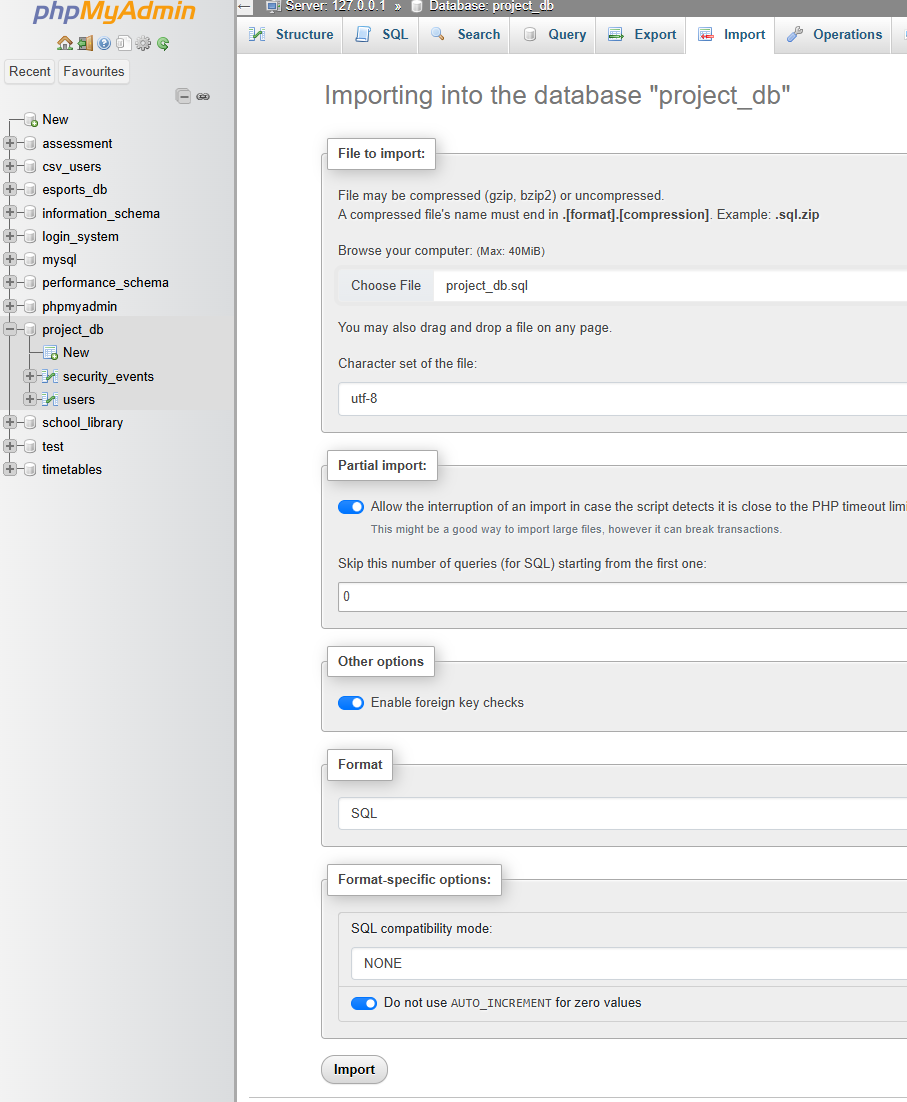
          image-1781051867640.png

          Verify the Tables

          After importing, you should see the project tables.

          Example:

          project_db
          ├── users
          ├── security_events
          └── products
          

          Your tables may differ depending on the project.

          Check the Database Connection

          Open the database connection file used by the project.

          Example:

          $conn = new mysqli(
              "localhost",
              "root",
              "",
              "project_db"
          );
          

          Verify:

            Database name is correct.. Username is correct. Password is correct.

            The default XAMPP configuration uses:

            Server: localhost
            Username: root
            Password: (blank)
            

            Test the Website

            Open:

            http://localhost/security_dashboard/
            

            Check:

              Pages load correctly. Images display correctly. Database content appears. Login systems work. Forms submit correctly.

              Common Problems

              Database Not Found

              Example:

              Unknown database 'project_db'
              

              Solution:

              • Create or select the expected database.
              • Import the SQL backup.file.
              check
              the

              TablePDO Notconnection Found

              settings. Start Apache and MySQL. open the project through localhost.

              Test the complete journey

              Example:Use fictional accounts and data to test registration, login, roles, protected pages, CSV import, database storage and meaningful outputs.

              Table

              Common 'project_db.users'problems

              doesn't
              exist

              Solution:

              Problem
                Check Verify the Page not found Folder name and localhost URL Database connection fails Database name and PDO settings Tables missing Correct SQL file importedand successfully.selected database Styles or images missing Relative paths and filename case Login fails User table, complete hashes and session setup Import fails Role, form encoding, file limits and headers

                Check

                   Files and SQL were transferred. Check Source backup remains recoverable.  Destination passes the tablefull existsuser injourney. phpMyAdmin. No real credentials or personal data are included.  Configuration differences are recorded.

                  Access Denied

                  Example:

                  Access denied for user 'root'
                  

                  Solution:

                    Check the database username and password. Verify MySQL is running.

                    Page Not Found

                    Example:

                    404 Not Found
                    

                    Solution:

                      Confirm the project folder is inside:
                      C:\xampp\htdocs\
                      
                        Verify the URL matches the folder name.

                        Transfer Checklist

                        Website Files

                        ✔ Project folder copied
                        ✔ Files restored to htdocs
                        ✔ Images restored
                        ✔ CSS restored
                        ✔ JavaScript restored
                        ✔ PHP files restored
                        

                        Database

                        ✔ Database created
                        ✔ SQL file imported
                        ✔ Tables restored
                        ✔ Data restored
                        

                        Testing

                        ✔ Website loads
                        ✔ Database connection works
                        ✔ Forms work
                        ✔ Login works
                        ✔ Data displays correctly
                        

                        Complete Process

                        Original Computer
                                ↓
                        Create Backup
                                ↓
                        Copy to USB / Cloud Storage
                                ↓
                        Install XAMPP
                                ↓
                        Copy Website Files
                                ↓
                        Create Database
                                ↓
                        Import SQL File
                                ↓
                        Test Website
                        

                        You have successfully moved a XAMPP project to another computer.