
Backing Up a XAMPP Project
A working XAMPP project usuallynormally consists ofhas two separate parts:
htdocs To create aA complete backup,backup bothneeds parts must be saved.
Create a Backup Folder
Create a folder somewhere safe, such as:
OneDrive - Department of Education
└── XAMPP Backups
Inside it create:
XAMPP Backups
├── Website Files
└── Databases
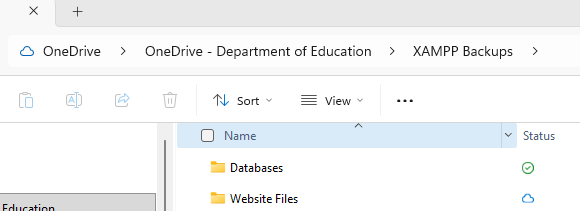
Back Upup project files
Open the XAMPP installation folder.
Example:
C:\xampp\htdocs\
Locate your project folder.
Example:
C:\xampp\htdocs\security_dashboardhtdocsXAMPPan Backups
└── Website Files
Yourapproved backup shouldlocation.
Website Files
└── security_dashboard
Thisthe backup includes:
Open phpMyAdmin
Open phpMyAdmin in your browser.
Example:
Select the databasecopy usedand byconfirm yourkey project.
Example:Do not use a synchronised copy as the only backup.
project_db
Export the Databasedatabase
http://localhost/phpmyadmin/.
Select the project database.
Choose Export.
Use SQL format and complete the export.
Save the .sql file beside the project-file backup.
Do not treat XAMPP’s raw mysql storage folder as a portable database backup.
Protect sensitive information
Click:Use fictional data only. Check that backups and screenshots contain no real student records, personal passwords or hosted-server credentials.
ExportVerify
theChoose:
Method: Quick
Format: SQL
Click:
Export
A filebackup similaris tonot theproven followinguntil willit can be downloaded:
project_db.sqlor 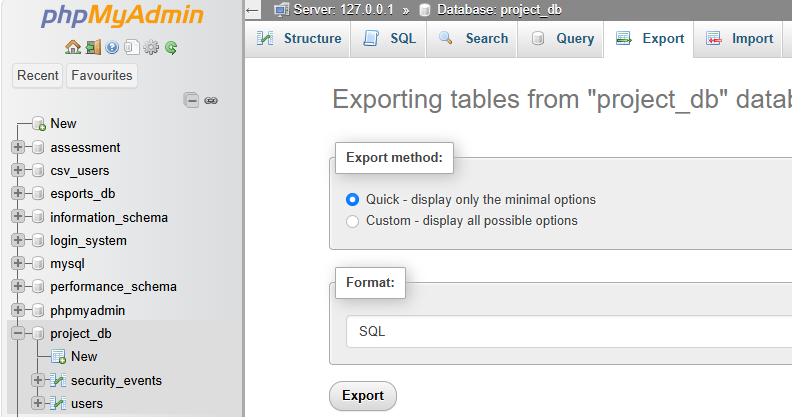
Save the Database Backup
Move the downloaded SQL file into:
XAMPP Backups
└── Databases
Your backup folder should now contain:
XAMPP Backups
├── Website Files
│   └── security_dashboard
│
└── Databases
    └── project_db.sql
Test the Backup
Before making major changes to a project, check that:Confirm:
Websiteproject archive opens
A
Check
recoverable
Completecopy Backupexists Checklist
outside Websitethe Files
working ✔folder.Database
✔ Database selected
✔ Export completed
✔ SQL file saved
Backup Structure Example
XAMPP Backups
├── Website Files
│   └── security_dashboard
│       ├── index.php
│       ├── dashboard.php
│       ├── css
│       ├── js
│       └── images
│
└── Databases
    └── project_db.sql
You now have a complete backup of your XAMPP project.
Next tutorial: Restoring a XAMPP Project from Backup.