# Loading JSON Data with JavaScript
In this tutorial, you will load data from a JSON file and display it on a webpage using JavaScript.
The JSON file contains information about a smart home, including devices and security events.
---
## Create the Project Files
Create a new folder called:
```text
json-demo
```
Inside the folder create:
```text
index.html
smart_security_data.json
```
Copy the JSON file into the project folder.
Your folder structure should look like:
```text
json-demo
├── index.html
└── smart_security_data.json
```
## Create the HTML Page
Open:
```text
index.html
```
Add the following code:
```html
JSON Demo
Smart Home Dashboard
```
Save the file.
---
## Create the JavaScript File
Create a new file called:
```text
script.js
```
Your folder should now look like:
```text
json-demo
├── index.html
├── script.js
└── smart_security_data.json
```
## Load the JSON File
Open:
```text
script.js
```
Add:
```javascript
fetch("smart_security_data.json")
.then(response => response.json())
.then(data => {
console.log(data);
});
```
Save the file.
This code loads the JSON file and converts it into a JavaScript object.
---
## Open Developer Tools
Open:
```text
index.html
```
in your browser.
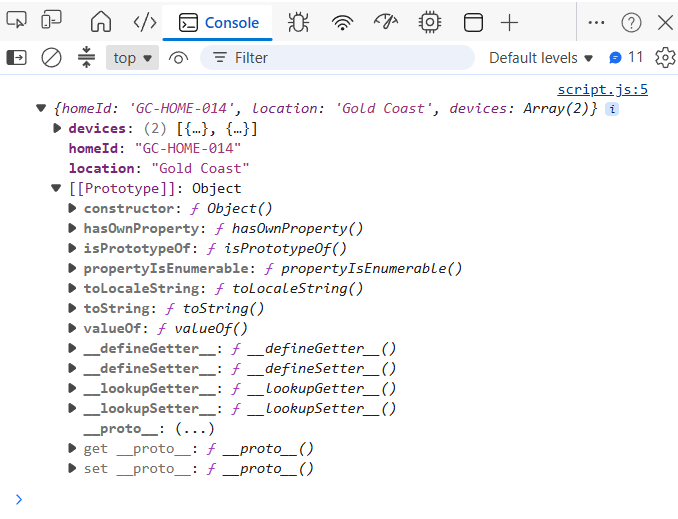
Press:
```text
F12
```
and select the **Console** tab.
You should see the JSON data displayed.
[](https://mr.napper.au/uploads/images/gallery/2026-06/image-1780915521847.png)
## Display the Home Information
Replace the contents of:
```javascript
.then(data => {
});
```
with:
```javascript
.then(data => {
document.getElementById("output").innerHTML = `
Home ID: ${data.homeId}
Location: ${data.location}
`;
});
```
Save the file.
Refresh the page.
You should now see:
```text
Home ID: GC-HOME-014
Location: Gold Coast
```
## Display the Devices
Update the code:
```javascript
fetch("smart_security_data.json")
.then(response => response.json())
.then(data => {
let html = `
Home ID: ${data.homeId}
Location: ${data.location}
Devices
`;
data.devices.forEach(device => {
html += `
-
${device.deviceId}
(${device.deviceType})
`;
});
html += "
";
document.getElementById("output").innerHTML = html;
});
```
Refresh the page.
You should now see:
```text
Home ID: GC-HOME-014
Location: Gold Coast
Devices
CAM-01 (Security Camera)
LOCK-02 (Smart Door Lock)
```
## Complete JavaScript File
```javascript
fetch("smart_security_data.json")
.then(response => response.json())
.then(data => {
let html = `
Home ID: ${data.homeId}
Location: ${data.location}
Devices
`;
data.devices.forEach(device => {
html += `
-
${device.deviceId}
(${device.deviceType})
`;
});
html += "
";
document.getElementById("output").innerHTML = html;
});
```
You have successfully loaded a JSON file and displayed data using JavaScript.
Next tutorial: **Displaying JSON Data in a Table**.