Importing JSON into MySQL with PHP
Create a MySQL structure, import fictional JSON records with PHP and query the stored data.
- Creating a Security Events Table
- Importing JSON into MySQL with PHP
- Querying Imported Data with SQL
- Building a Security Dashboard Using PHP and MySQL
Creating a Security Events Table
In this tutorial, you will create a MySQL table to store security event data imported from a JSON file.
The JSON file contains homes, devices and events. Rather than storing the entire JSON structure, each event will be stored as a separate row in a database table.
This approach makes it easier to search, filter and analyse the data using SQL.
Open phpMyAdmin
Open phpMyAdmin in your browser.
Example:
http://localhost/phpmyadmin/
Select your existing database:
project_db
Create the Security Events Table
Select the SQL tab and run:
CREATE TABLE security_events (

    event_id INT AUTO_INCREMENT PRIMARY KEY,

    device_id VARCHAR(50) NOT NULL,

    device_type VARCHAR(100) NOT NULL,

    room VARCHAR(100) NOT NULL,

    event_timestamp DATETIME NOT NULL,

    event_type VARCHAR(100) NOT NULL,

    data_transmitted VARCHAR(100) NOT NULL,

    severity VARCHAR(20) NOT NULL,

    access_result VARCHAR(20) NOT NULL

);
This creates a table capable of storing all event information from the JSON file.
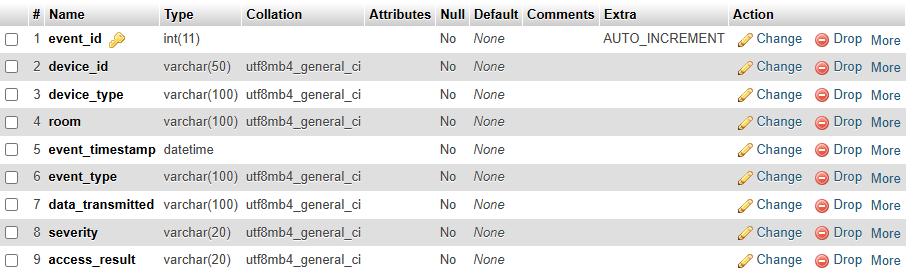
Review the Table Structure
The completed table should contain the following fields:
| Field | Purpose |
|---|---|
| event_id | Unique identifier for each event |
| device_id | Device that generated the event |
| device_type | Type of device |
| room | Location of the device |
| event_timestamp | Date and time of the event |
| event_type | Type of activity |
| data_transmitted | Data involved in the event |
| severity | Event severity level |
| access_result | Result of the event |
View the Table Structure
Run:
DESCRIBE security_events;
You should see a structure similar to:
| Field | Type |
|---|---|
| event_id | int |
| device_id | varchar(50) |
| device_type | varchar(100) |
| room | varchar(100) |
| event_timestamp | datetime |
| event_type | varchar(100) |
| data_transmitted | varchar(100) |
| severity | varchar(20) |
| access_result | varchar(20) |
Insert a Test Record
Before importing JSON data, insert a test record to verify the table works correctly.
Run:
INSERT INTO security_events (

    device_id,
    device_type,
    room,
    event_timestamp,
    event_type,
    data_transmitted,
    severity,
    access_result

)
VALUES (

    'CAM-01',
    'Security Camera',
    'Front Entrance',
    '2026-03-14 02:18:45',
    'motion_detected',
    'video_stream',
    'high',
    'authorised'

);
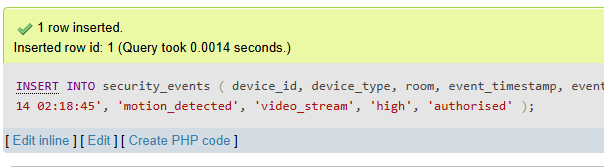
If successful, MySQL will report:
1 row inserted
View the Data
Run:
SELECT * FROM security_events;
You should see:
| event_id | device_id | device_type | room | event_timestamp | event_type | severity |
|---|---|---|---|---|---|---|
| 1 | CAM-01 | Security Camera | Front Entrance | 2026-03-14 02:18:45 | motion_detected | high |
Delete the Test Record
The test record is no longer required.
Run:
DELETE FROM security_events;
Verify the table is empty:
SELECT * FROM security_events;
You should see:
Empty set
Complete SQL Script
CREATE TABLE security_events (

    event_id INT AUTO_INCREMENT PRIMARY KEY,

    device_id VARCHAR(50) NOT NULL,

    device_type VARCHAR(100) NOT NULL,

    room VARCHAR(100) NOT NULL,

    event_timestamp DATETIME NOT NULL,

    event_type VARCHAR(100) NOT NULL,

    data_transmitted VARCHAR(100) NOT NULL,

    severity VARCHAR(20) NOT NULL,

    access_result VARCHAR(20) NOT NULL

);

INSERT INTO security_events (

    device_id,
    device_type,
    room,
    event_timestamp,
    event_type,
    data_transmitted,
    severity,
    access_result

)
VALUES (

    'CAM-01',
    'Security Camera',
    'Front Entrance',
    '2026-03-14 02:18:45',
    'motion_detected',
    'video_stream',
    'high',
    'authorised'

);

SELECT * FROM security_events;

DELETE FROM security_events;
You now have a database table ready to receive event data from a JSON file.
Importing JSON into MySQL with PHP
This tutorial imports a fictional JSON dataset into MySQL using PHP, PDO, validation and a prepared statement.
Use fictional data only. Do not import real student, staff, account, device or school-security information.
Project files
Create this structure inside your XAMPP project:
project/
├── includes/
│   └── database.php
├── smart_security_data.json
└── import_json.php
includes/database.php should create the shared $pdo connection used throughout the project. Keep connection details in that one file rather than repeating them on every page.
Understand the expected data
The fictional JSON file contains homes, devices and nested events. Each event will become one row in security_events.
Before importing, identify the fields your code expects. A typical event needs:
- a device identifier and type;
- a room;
- an event timestamp and type;
- the data transmitted;
- severity; and
- the access result.
Read and decode the JSON
<?php
declare(strict_types=1);

require __DIR__ . '/includes/database.php';

$jsonPath = __DIR__ . '/smart_security_data.json';

if (!is_readable($jsonPath)) {
    exit('The fictional JSON file could not be read.');
}

try {
    $data = json_decode(
        file_get_contents($jsonPath),
        true,
        512,
        JSON_THROW_ON_ERROR
    );
} catch (JsonException $error) {
    exit('The JSON structure is invalid.');
}
JSON_THROW_ON_ERROR prevents malformed JSON from being treated as valid data.
Prepare one reusable insert
$insert = $pdo->prepare(
    'INSERT INTO security_events (
        device_id,
        device_type,
        room,
        event_timestamp,
        event_type,
        data_transmitted,
        severity,
        access_result
    ) VALUES (
        :device_id,
        :device_type,
        :room,
        :event_timestamp,
        :event_type,
        :data_transmitted,
        :severity,
        :access_result
    )'
);
Preparing the statement once separates the SQL instructions from each row's values.
Validate and import each event
$allowedSeverities = ['low', 'medium', 'high', 'critical'];
$allowedResults = ['authorised', 'denied', 'blocked'];
$inserted = 0;
$rejected = 0;

$pdo->beginTransaction();

try {
    foreach (($data['devices'] ?? []) as $device) {
        foreach (($device['events'] ?? []) as $event) {
            $deviceId = trim((string) ($device['deviceId'] ?? ''));
            $deviceType = trim((string) ($device['deviceType'] ?? ''));
            $room = trim((string) ($device['room'] ?? ''));
            $timestamp = trim((string) ($event['timestamp'] ?? ''));
            $eventType = trim((string) ($event['eventType'] ?? ''));
            $transmitted = trim((string) ($event['dataTransmitted'] ?? ''));
            $severity = strtolower(trim((string) ($event['severity'] ?? '')));
            $accessResult = strtolower(trim((string) ($event['accessResult'] ?? '')));

            $validTimestamp = DateTime::createFromFormat(
                'Y-m-d H:i:s',
                $timestamp
            ) !== false;

            if (
                $deviceId === '' ||
                $deviceType === '' ||
                $room === '' ||
                $eventType === '' ||
                !$validTimestamp ||
                !in_array($severity, $allowedSeverities, true) ||
                !in_array($accessResult, $allowedResults, true)
            ) {
                $rejected++;
                continue;
            }

            $insert->execute([
                'device_id' => $deviceId,
                'device_type' => $deviceType,
                'room' => $room,
                'event_timestamp' => $timestamp,
                'event_type' => $eventType,
                'data_transmitted' => $transmitted,
                'severity' => $severity,
                'access_result' => $accessResult
            ]);

            $inserted++;
        }
    }

    $pdo->commit();
} catch (Throwable $error) {
    if ($pdo->inTransaction()) {
        $pdo->rollBack();
    }

    exit('The import could not be completed.');
}
The transaction prevents a database error from leaving an uncertain partial import. Row validation rejects unsuitable values before storage.
Report the result
echo '<p>' . $inserted . ' fictional events imported.</p>';
echo '<p>' . $rejected . ' rows rejected.</p>';
For a classroom prototype, report useful totals without exposing database errors or connection details to the user.
Check the import
Confirm that:
- valid events are stored once;
- invalid values are rejected;
- the prepared statement is reused;
- a failed transaction is rolled back;
- the result totals match the database; and
- only fictional data was processed.
Querying Imported Data with SQL
In this tutorial, you will use SQL queries to analyse the imported data.
View All Events
Open phpMyAdmin and select the:
security_events
table.
Run:
SELECT *
FROM security_events;
This displays all imported records.
Count All Events
To find the total number of events:
SELECT COUNT(*) AS total_events
FROM security_events;
Example result:
| total_events |
|---|
| 3 |
This query is useful for dashboards and reporting.
Find Critical Events
To display only critical events:
SELECT *
FROM security_events
WHERE severity = 'critical';
Example result:
| device_id | event_type | severity |
|---|---|---|
| CAM-01 | remote_access_attempt | critical |
Count Events by Severity
Run:
SELECT
    severity,
    COUNT(*) AS total
FROM security_events
GROUP BY severity;
Example result:
| severity | total |
|---|---|
| critical | 1 |
| high | 1 |
| medium | 1 |
This is often used to build dashboard summary cards.
Find Events from a Specific Device
To display events generated by the security camera:
SELECT *
FROM security_events
WHERE device_id = 'CAM-01';
Example result:
| device_id | event_type |
|---|---|
| CAM-01 | motion_detected |
| CAM-01 | remote_access_attempt |
Count Events Per Device
Run:
SELECT
    device_id,
    COUNT(*) AS total_events
FROM security_events
GROUP BY device_id;
Example result:
| device_id | total_events |
|---|---|
| CAM-01 | 2 |
| LOCK-02 | 1 |
This identifies which devices are generating the most activity.
Find High-Risk Events
To display high and critical events:
SELECT *
FROM security_events
WHERE severity IN ('high', 'critical');
Example result:
| device_id | event_type | severity |
|---|---|---|
| CAM-01 | motion_detected | high |
| CAM-01 | remote_access_attempt | critical |
This query could be used to generate security alerts.
Sort Events by Time
To view the newest events first:
SELECT *
FROM security_events
ORDER BY event_timestamp DESC;
This is commonly used in event logs and monitoring systems.
Useful Dashboard Queries
Total Events
SELECT COUNT(*) AS total_events
FROM security_events;
Critical Events
SELECT COUNT(*) AS critical_events
FROM security_events
WHERE severity = 'critical';
Device Count
SELECT COUNT(DISTINCT device_id) AS total_devices
FROM security_events;
Events by Severity
SELECT
    severity,
    COUNT(*) AS total
FROM security_events
GROUP BY severity;
These queries are commonly used when building dashboards.
Complete Practice Queries
SELECT *
FROM security_events;

SELECT COUNT(*) AS total_events
FROM security_events;

SELECT *
FROM security_events
WHERE severity = 'critical';

SELECT
    severity,
    COUNT(*) AS total
FROM security_events
GROUP BY severity;

SELECT
    device_id,
    COUNT(*) AS total_events
FROM security_events
GROUP BY device_id;

SELECT *
FROM security_events
ORDER BY event_timestamp DESC;
You have successfully queried imported JSON data using SQL.
Building a Security Dashboard Using PHP and MySQL
This standalone example queries fictional security-event data with PDO and presents useful summary and detail output.
A dashboard is meaningful when each output answers a user question. Do not add a statistic or chart merely because it is easy to calculate.
Connect with PDO
<?php
declare(strict_types=1);

require __DIR__ . '/includes/database.php';
Do not repeat database credentials in the dashboard page.
Query useful summaries
$totalEvents = (int) $pdo
    ->query('SELECT COUNT(*) FROM security_events')
    ->fetchColumn();

$highRiskEvents = (int) $pdo
    ->query(
        "SELECT COUNT(*)
         FROM security_events
         WHERE severity IN ('high', 'critical')"
    )
    ->fetchColumn();

$deniedEvents = (int) $pdo
    ->query(
        "SELECT COUNT(*)
         FROM security_events
         WHERE access_result IN ('denied', 'blocked')"
    )
    ->fetchColumn();
These queries answer three different questions: how much activity exists, how much is high priority, and how often access was prevented.
Retrieve recent records
$recentStatement = $pdo->query(
    'SELECT
        event_timestamp,
        device_id,
        room,
        event_type,
        severity,
        access_result
     FROM security_events
     ORDER BY event_timestamp DESC
     LIMIT 10'
);

$recentEvents = $recentStatement->fetchAll();
Select only the fields needed by the interface.
Present accessible summary output
<section aria-labelledby="summary-heading">
  <h1 id="summary-heading">Security event summary</h1>

  <div class="summary-grid">
    <article class="card">
      <h2>Total events</h2>
      <p><?= $totalEvents ?></p>
    </article>

    <article class="card">
      <h2>High-priority events</h2>
      <p><?= $highRiskEvents ?></p>
    </article>

    <article class="card">
      <h2>Denied or blocked</h2>
      <p><?= $deniedEvents ?></p>
    </article>
  </div>
</section>
Headings and text communicate the meaning without relying on colour alone.
Present recent events safely
<?php if (!$recentEvents): ?>
  <p>No fictional events are available.</p>
<?php else: ?>
  <div class="table-wrap">
    <table>
      <caption>Ten most recent fictional security events</caption>
      <thead>
        <tr>
          <th scope="col">Time</th>
          <th scope="col">Device</th>
          <th scope="col">Room</th>
          <th scope="col">Event</th>
          <th scope="col">Severity</th>
          <th scope="col">Access result</th>
        </tr>
      </thead>
      <tbody>
        <?php foreach ($recentEvents as $event): ?>
          <tr>
            <td><?= htmlspecialchars($event['event_timestamp']) ?></td>
            <td><?= htmlspecialchars($event['device_id']) ?></td>
            <td><?= htmlspecialchars($event['room']) ?></td>
            <td><?= htmlspecialchars($event['event_type']) ?></td>
            <td><?= htmlspecialchars($event['severity']) ?></td>
            <td><?= htmlspecialchars($event['access_result']) ?></td>
          </tr>
        <?php endforeach; ?>
      </tbody>
    </table>
  </div>
<?php endif; ?>
htmlspecialchars() prevents stored text from being interpreted as page markup.
Responsive styling
.summary-grid {
    display: grid;
    grid-template-columns: repeat(auto-fit, minmax(12rem, 1fr));
    gap: 1rem;
}

.table-wrap {
    overflow-x: auto;
}

table {
    width: 100%;
    border-collapse: collapse;
}

th,
td {
    padding: 0.75rem;
    border: 1px solid #cbd5e1;
    text-align: left;
}
Test the dashboard
Confirm that:
- each total matches an independent SQL check;
- an empty database has a clear message;
- text is escaped;
- the table remains usable on a narrow screen;
- headings explain each value; and
- all records are fictional.